
Workspace
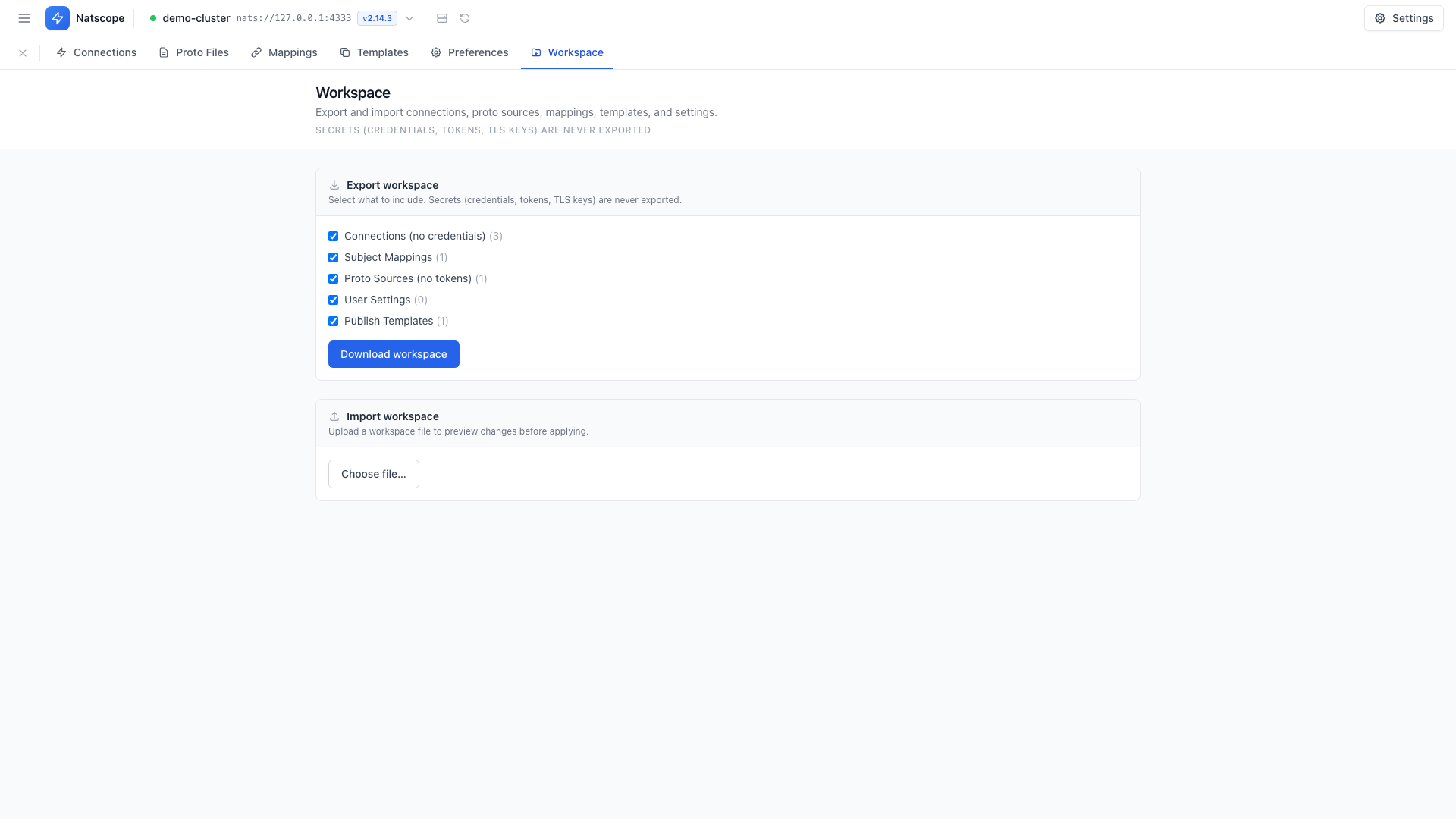
A workspace export packs your Natscope configuration into a single JSON file: connections, proto sources, subject mappings, templates and settings. Use it to back up your setup, move it to another machine, or hand a working configuration to a teammate.
Secrets never leave. Passwords, tokens, NKey seeds, credentials files and TLS private keys stay in the vault. Imported connections are flagged so you know to re-enter their credentials.
Export
Go to Settings → Workspace → Export workspace. Tick the sections you want, each showing its item count, then click Download workspace.
Import
- Go to Settings → Workspace → Import workspace.
- Click Choose file… and pick an exported JSON file.
- Pick a Strategy:
- Merge — keep what you have, add and update from the file
- Replace — make your workspace match the file, deleting what the file omits
- Read the preview. Each section reports how many entries are new, updated or deleted, plus any conflicts. Unsupported sections say so and get skipped.
- Click Apply merge import or Apply replace import.
A replace import that would delete data asks you to type REPLACE first. The confirm button then names the number of entries going away.
After an import
Open Settings → Connections and re-enter credentials for the imported connections. Test each one before you rely on it.